Zen
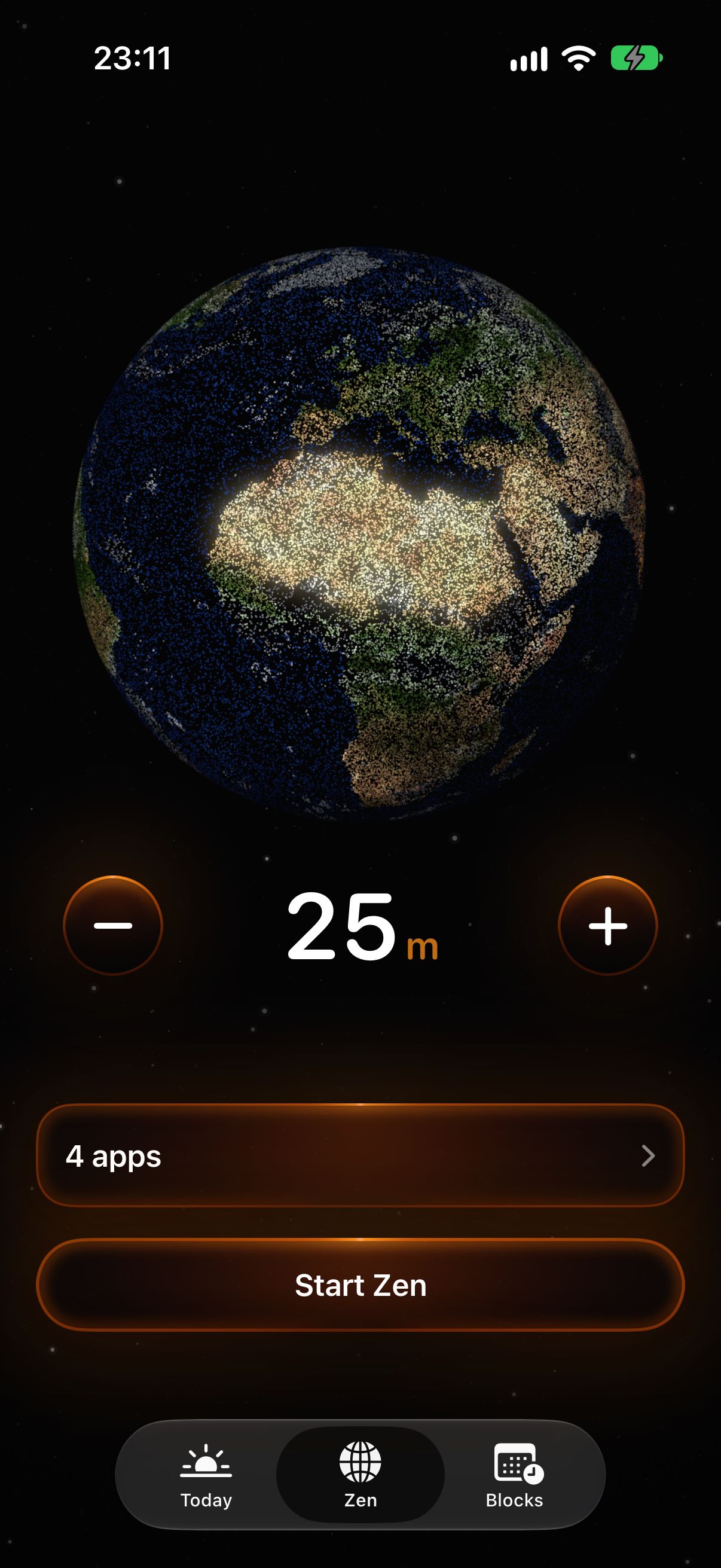
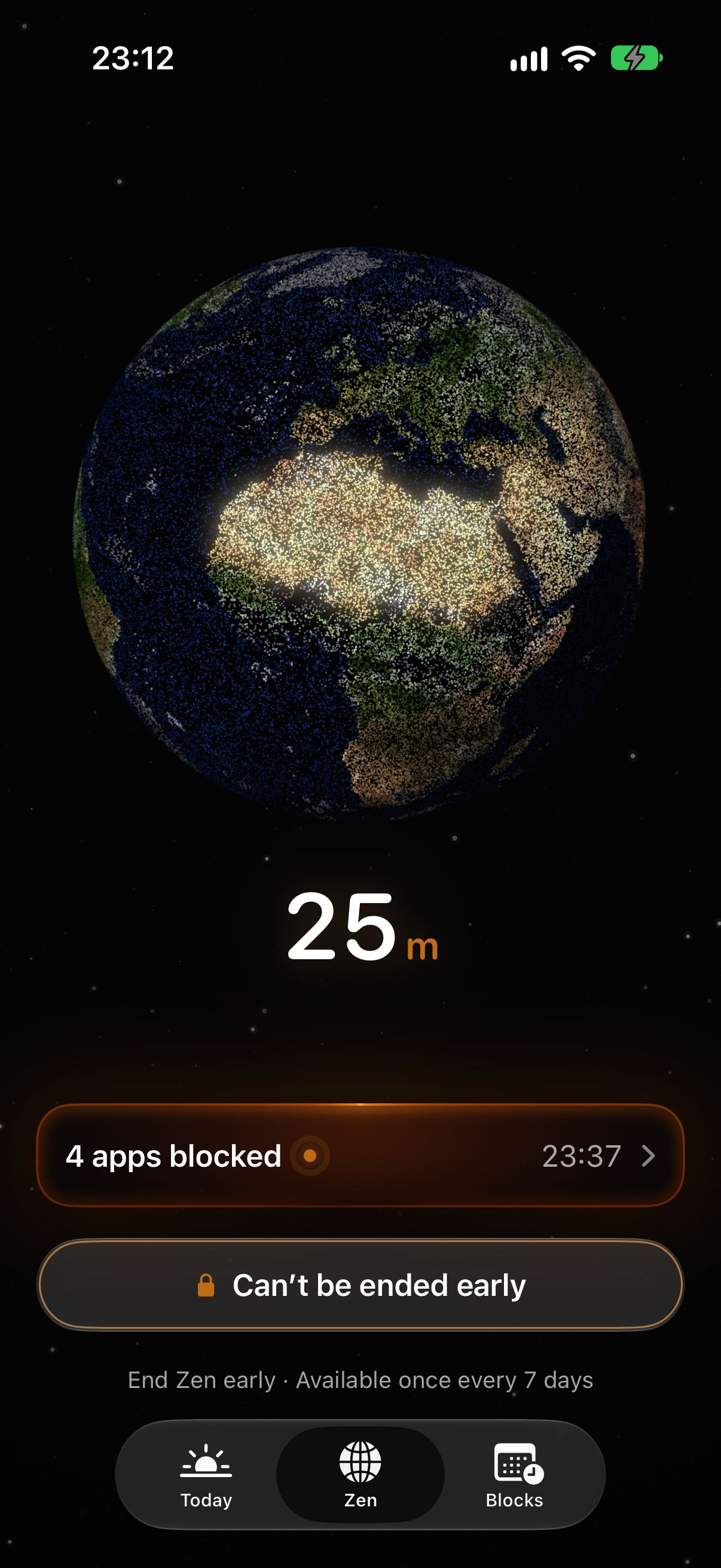
Blocks your chosen apps the moment you start it, for anything from 10 minutes to 7 days. Turn the Earth to choose how long.
An app blocker for iPhone, built on Apple’s Screen Time.
In development. Not on the App Store yet.
See how it works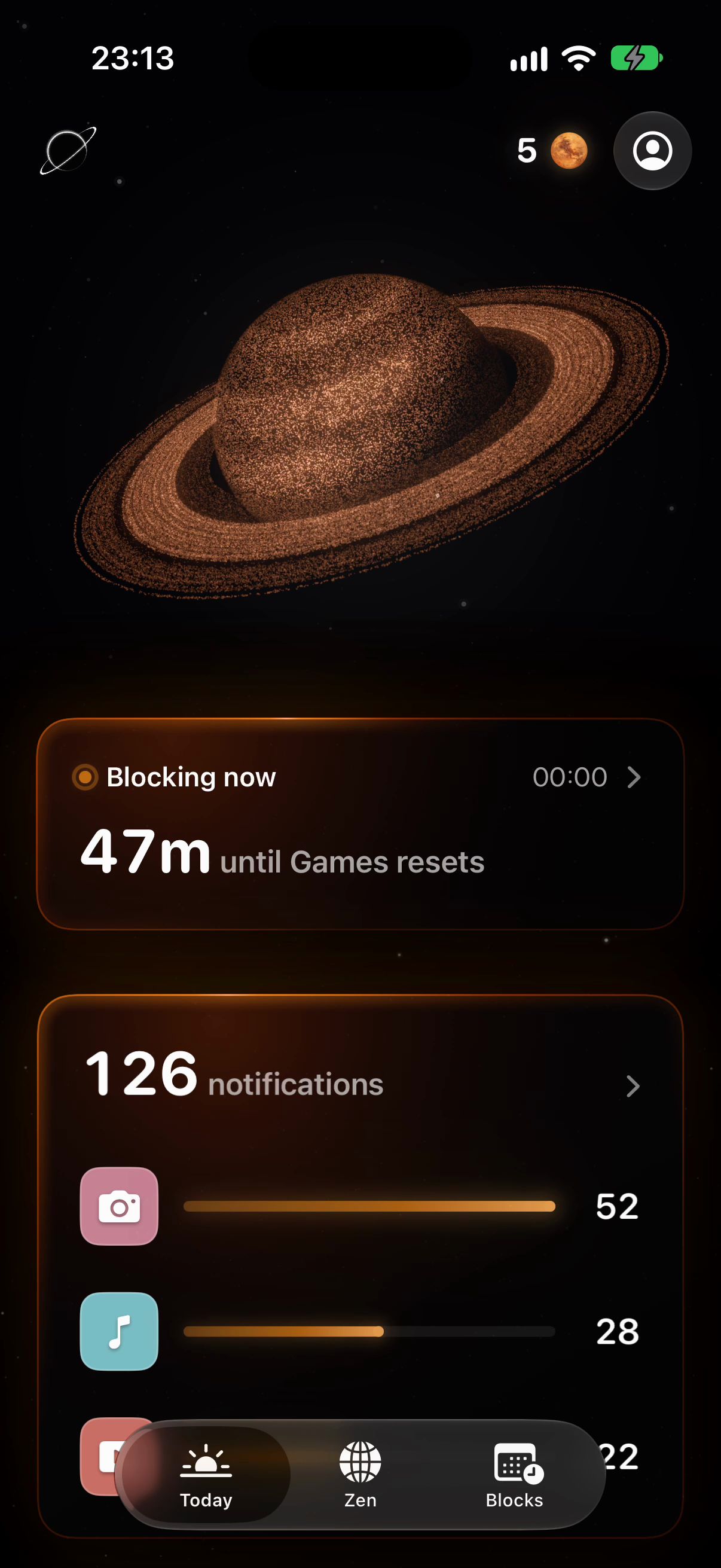
You pick the apps with Apple’s own picker. iOS does the blocking through Screen Time, so Offhours never learns which apps you picked.
Blocks your chosen apps the moment you start it, for anything from 10 minutes to 7 days. Turn the Earth to choose how long.
Block apps on the days and hours you choose, overnight too. They start and end on their own, or with Pro, wait until your tasks are done.
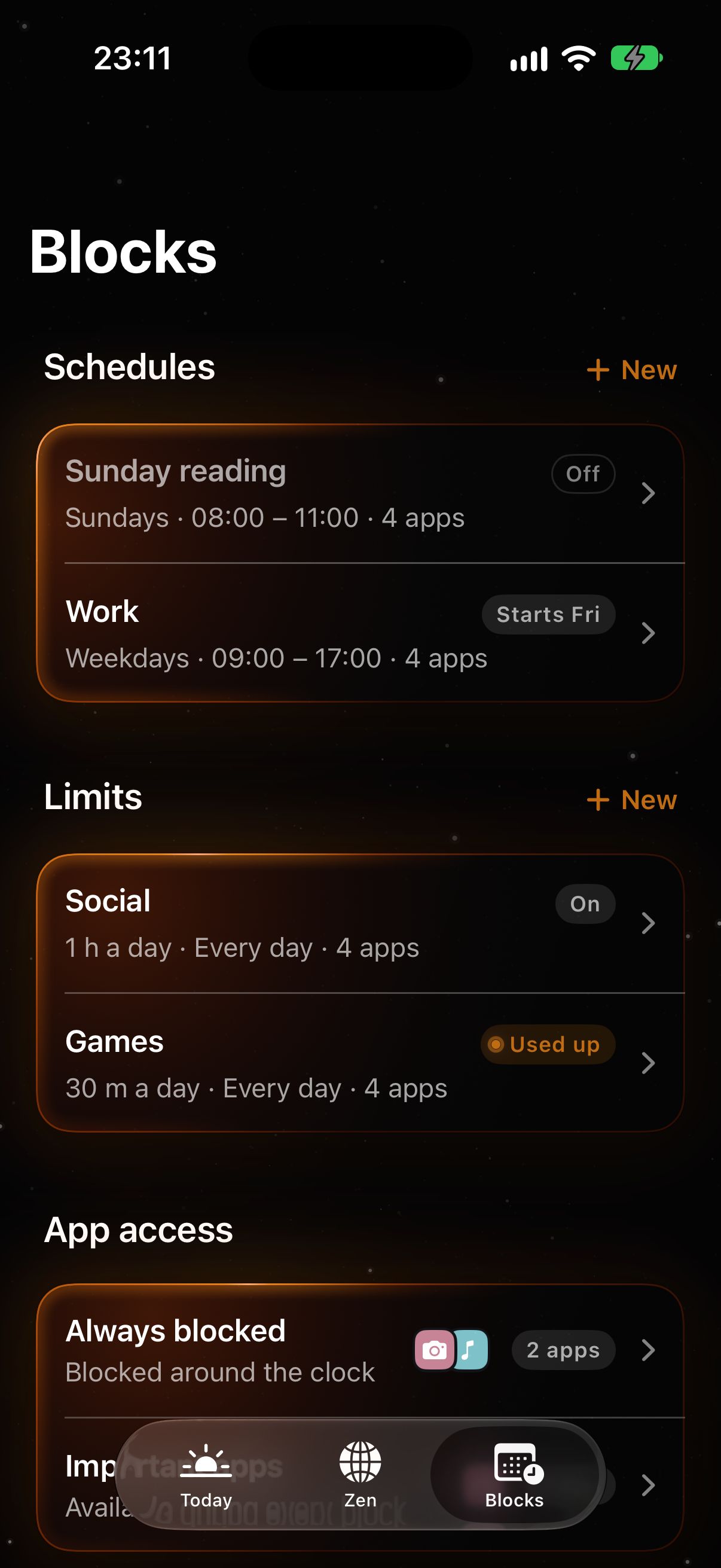
Give apps an amount of time a day, like an hour of social apps. Once it’s used up, they stay blocked until midnight.
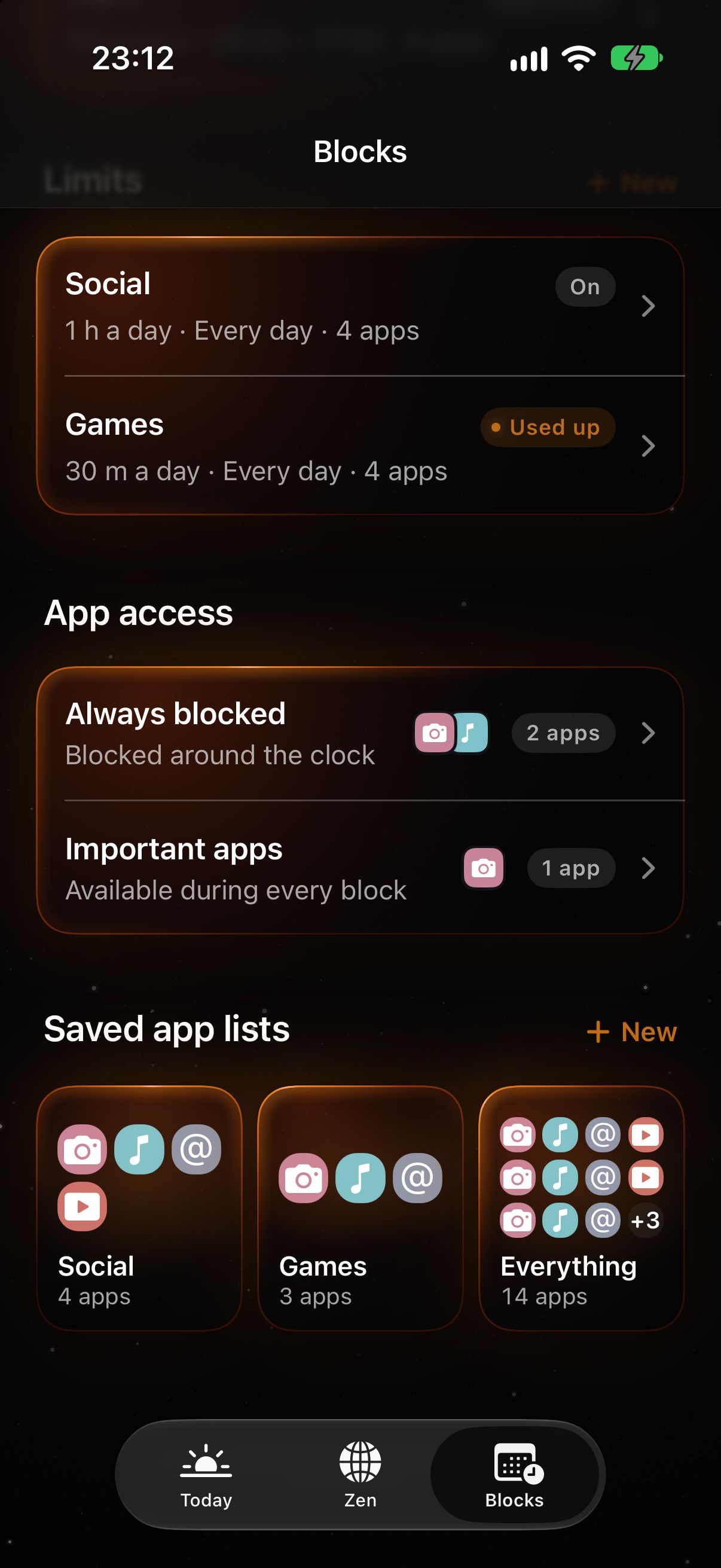
Apps on this list stay blocked around the clock. Important apps are the opposite: they stay open through every block.
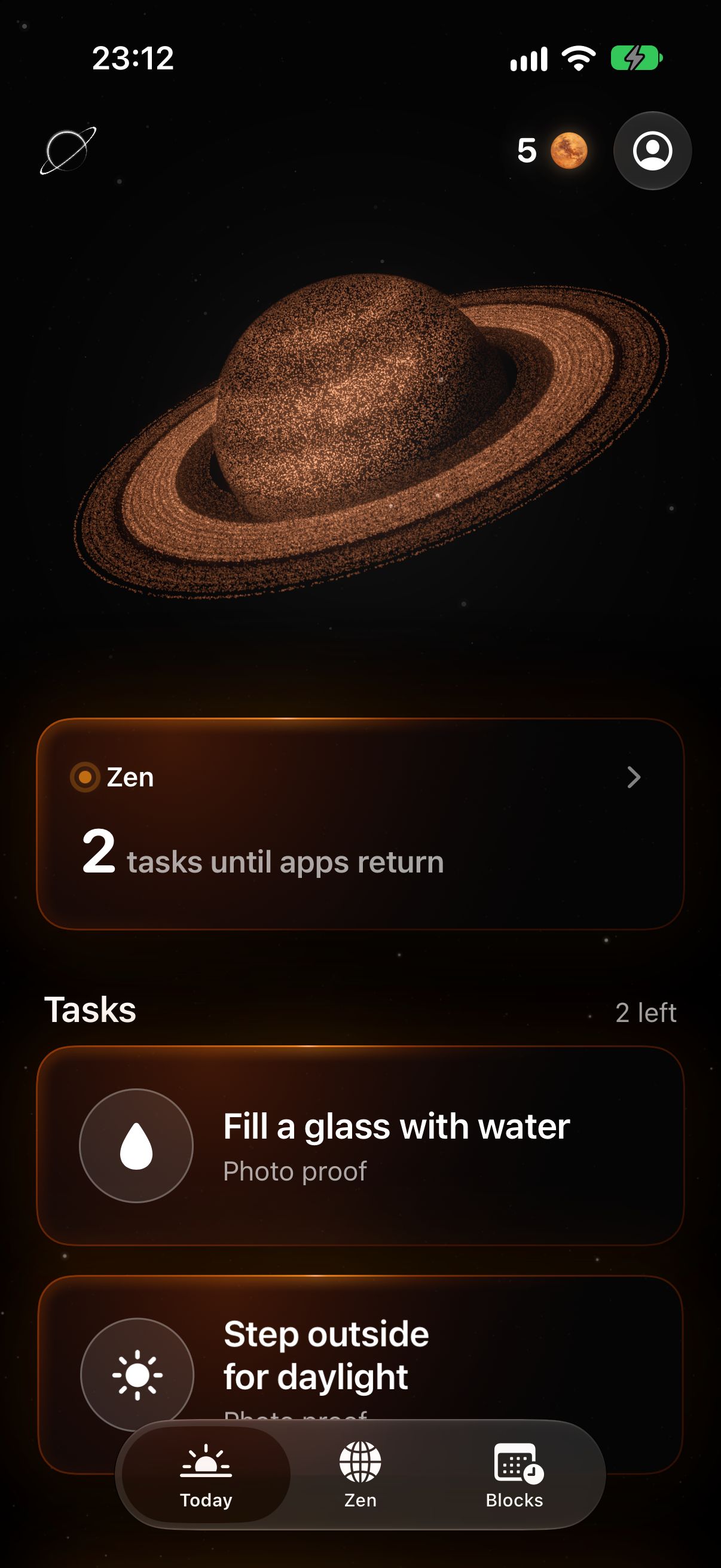
With Pro, Zen or a schedule can wait for up to three tasks, like making your bed or walking 1,000 steps. Each is checked the way that suits it, from a photo to Apple Health.
With Pro you can lock Zen or a schedule so it can’t be ended early, and a limit so it can’t be changed once used up. Zen keeps one way out: End Zen early, once every 7 days.
You set a block ahead of time, while you aren’t looking at the app. Apple’s iPhone guide for iOS 26 says Screen Time limits can be ignored by default, unless you set a Screen Time passcode and turn on blocking. The screen Offhours puts over a blocked app has one button, Close, with no extra minute and no way to ignore it. To get the app back you have to leave it and change the block in Offhours. With Lock on, a schedule stays until its time and a used-up limit stays until midnight.
In a 2022 study of about 2,000 adults on Android phones, people who could set their own app limits spent 22 minutes a day less on social media, browsers and YouTube over 12 weeks, about 16 percent. About half of that time moved to other apps. That study used a different app. No study has tested Offhours, which is still being built.
What research says about blocking an app instead of resisting it
Apple’s picker hands Offhours tokens, never app names, and your screen time stays inside an iOS extension that can’t pass it on. As the app is built today, schedules, limits and history stay on your iPhone.
Your account and your task photos are what reach our server. A photo is checked by an AI model from Anthropic. Our copy is deleted once a result is recorded, and Anthropic normally keeps its copy for up to 30 days. The result stays on our server for 180 days.
What an app blocker can see on your iPhone The Offhours privacy policy
Offhours is in development and not on the App Store yet. The price isn’t announced; Tasks and Lock are part of Offhours Pro. Made by Enfinitive AB in Lindesberg, Sweden.